How to build a polished interactive classroom app in Google AI Studio (in under 15 minutes)
A step-by-step walkthrough for building a genuinely polished, shareable classroom interactive in Google AI Studio—no coding, no web design, just clear prompts and a tight test-and-tweak loop.
Quick Summary
- •Start with one simple prompt that defines audience, inputs, and outputs—then build immediately.
- •Polish comes from short follow-up prompts that fix one issue at a time.
- •Use sensible default values so the app feels 'alive' the moment students open it.
- •Quizzes are a fast win: familiar format, quick to build, easy to iterate.
Most teachers don't realise this yet: you can build a genuinely polished, shareable interactive for your class without coding, without web design skills, and without spending hours on it.
Google AI Studio is set up for exactly this. You type what you want in normal English, it builds the app, and you iterate by giving it short follow-up instructions (again, in normal English). When you're happy, you publish it and share a link with your class.
This post is a practical walkthrough you can follow step-by-step.
I'll use one example app (from my A Level Economics class) purely to make it concrete: students enter a few spending categories and weights, and the app calculates a "personal inflation rate" and compares it with the official CPI.
But the real point isn't inflation. The point is: once you've built one simple interactive, you'll immediately see how you could build others for your own subject.
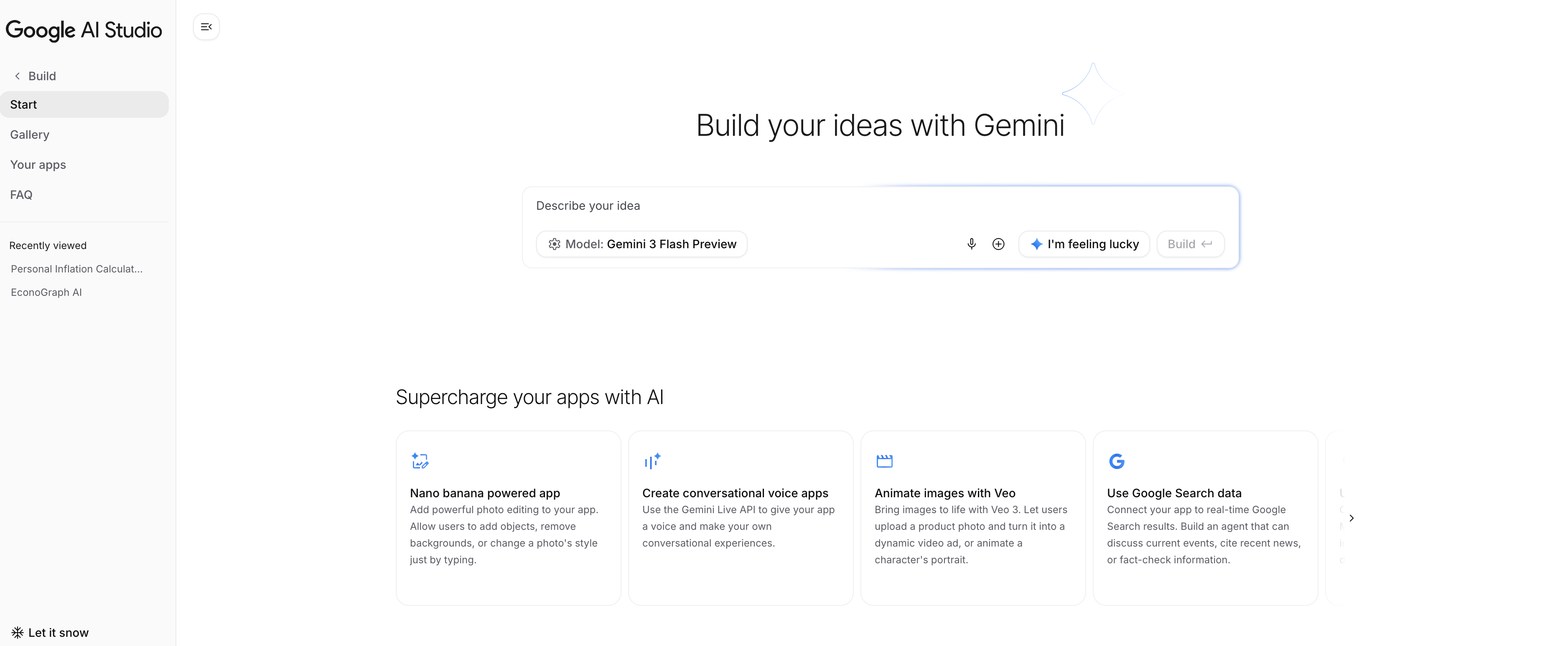 Figure 1: The Google AI Studio start screen, with the main "Describe your idea" prompt box and model selector.
What you'll build
A shareable mini-app that:
- has a clean, student-friendly interface
- takes simple student inputs (a few categories + sliders)
- calculates an output live and displays it clearly
- includes a headline reference figure (in my example: the official CPI)
You can swap the content for almost anything: a quiz, a decision tree, a calculator, a short simulation, a guided "choose your own path", a revision organiser, a practical planner, a graphing tool, and so on.
Why AI Studio works well for teachers
Two reasons:
- It's built around natural language prompting. You describe what you want, it builds it.
- It has a tight loop: build → test → adjust → build again. That's exactly how teachers refine resources anyway.
You don't need to start perfect. You just need a first version that runs.
Step-by-step: building your first interactive in AI Studio
Step 1: Open Google AI Studio and start a Build
- Go to Google AI Studio
- Click Build (or Start, depending on what you see)
- You'll get a single input box that says something like "Describe your idea"
This is where you write your first prompt.
Step 2: Write a simple first prompt (don't overthink it)
Your first prompt should include:
- who it's for (age/year group)
- what students will do (inputs)
- what the app should show (outputs)
- any key data source (optional)
Here was my first prompt:
Make an interactive resource for A Level Economics student. The displays (pulls from the UK ONS) shows the latest inflation figure (latest 12 months). Students are invited to enter their 5 most important categories (and their weights) and the app calculates and displays their personal inflation rate.
Then click Build.
You should get something working quite quickly: a basic interface, input controls, and output panels.
Step 3: Test it like a student would
This is the part most people skip, but it's where the app becomes "polished".
Click around and look for:
- anything confusing on first glance
- any numbers that don't match what you expect
- any default values that make the app feel "empty"
- any instructions that need simplifying
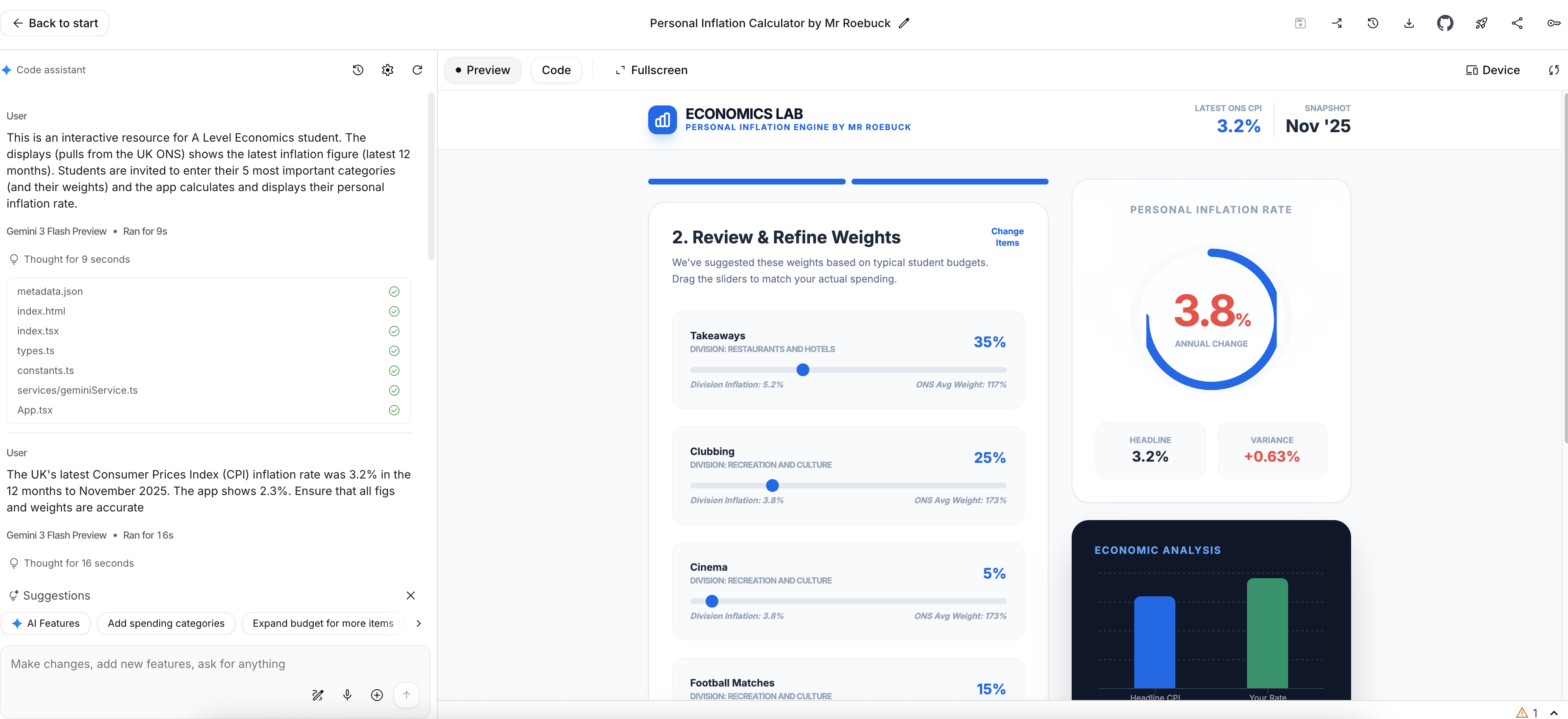 Figure 2: The AI Studio Build view—your prompt/chat on the left and a live student-facing preview on the right.
Step 4: Fix issues with short follow-up prompts
When you spot a problem, don't rewrite everything. Just give one clear instruction.
Example 1: correcting a wrong figure
In my case, the app displayed a CPI figure that didn't match the one I wanted it to use. So my follow-up prompt was:
The UK's latest Consumer Prices Index (CPI) inflation rate was 3.2% in the 12 months to November 2025. The app shows 2.3%. Ensure that all figs and weights are accurate
That's it. Clear, direct, and focused on the specific issue.
Example 2: improving the first impression
Another issue: the app initially showed weights as 0%, which makes it feel broken until students change things. So I used:
Currently the initial weights are shown as 0%. Please make estimates before inviting students to amend.
This is a great general trick for teacher-facing interactives: give sensible defaults so it works immediately, then invite students to adjust.
Step 5: Iterate 2–5 times (that's usually enough)
Most of the polish comes from small refinements like:
- "Make the instructions shorter and student-friendly"
- "Make the layout clearer on mobile"
- "Rename that button to something simpler"
- "Add a short explanation of what the output means"
- "Stop students entering weights that don't add to 100%"
- "Show an error message if inputs are missing"
The aim is not perfection. It's clarity.
Step 6: Publish and share with your class
Once you're happy:
- click Publish
- copy the share link
- put it where your students already are (Google Classroom, Teams, your VLE, or just paste it into the chat)
Students don't need accounts or logins to benefit from a simple interactive like this. They just open the link and use it.
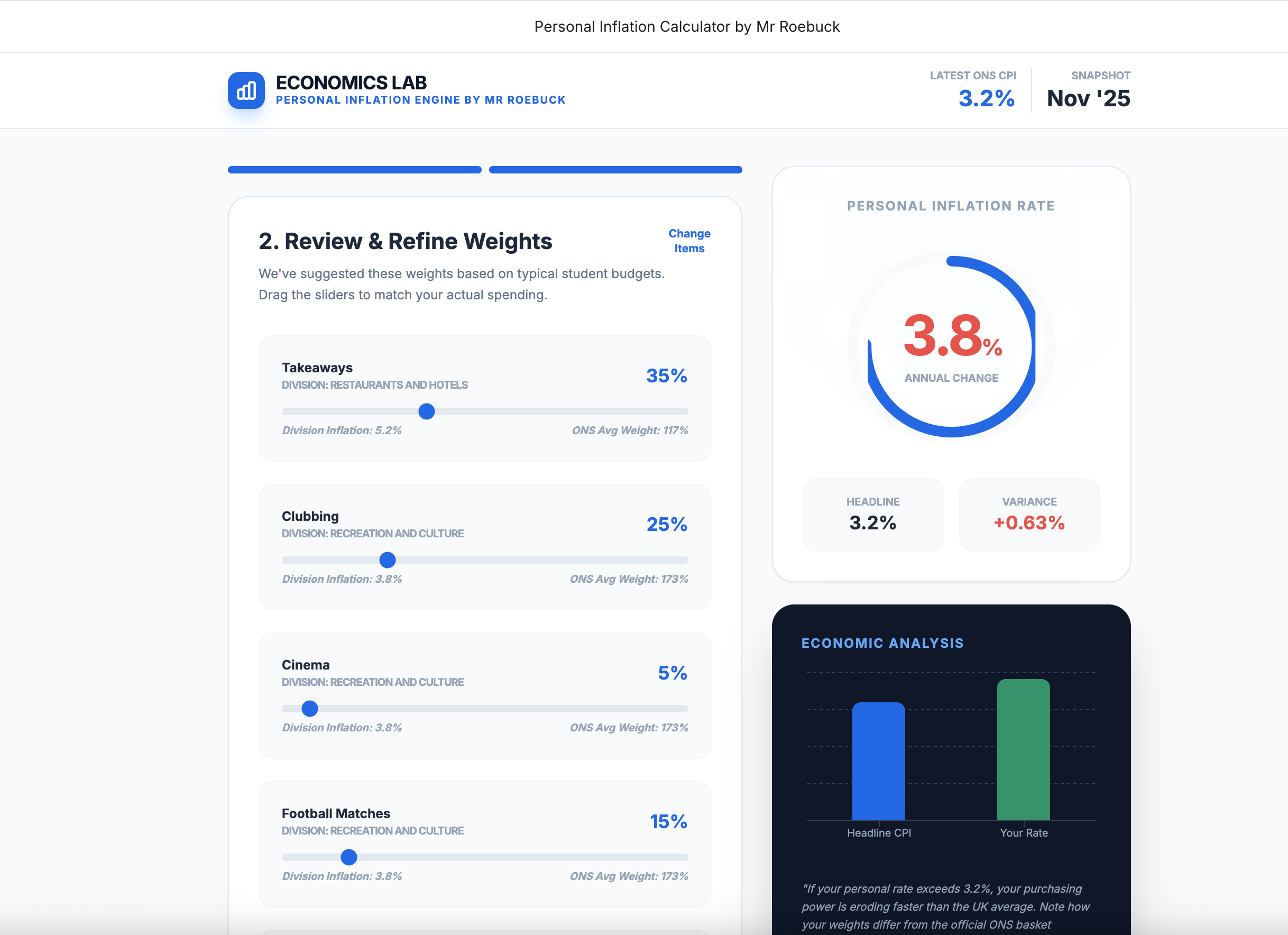 Figure 3: A polished end result—clear layout, sensible defaults, and an output that's obvious at a glance.
A quick checklist for making it feel "proper" (not a rough demo)
Before sharing, check:
- Does it make sense with no explanation from you?
- Does it work instantly without students having to "set it up"?
- Are the labels obvious to a student?
- Are the default values sensible?
- Does the output clearly say what it is?
- Does it work on a laptop and a phone-sized screen?
If you can tick most of those, you've built something students will actually use.
The prompts I used (copy/paste)
1) First build prompt
Make an interactive resource for A Level Economics student. The displays (pulls from the UK ONS) shows the latest inflation figure (latest 12 months). Students are invited to enter their 5 most important categories (and their weights) and the app calculates and displays their personal inflation rate.
2) Fixing accuracy
The UK's latest Consumer Prices Index (CPI) inflation rate was 3.2% in the 12 months to November 2025. The app shows 2.3%. Ensure that all figs and weights are accurate
3) Adding sensible defaults
Currently the initial weights are shown as 0%. Please make estimates before inviting students to amend.
A "make a quiz" example prompt (copy/paste)
If you want a fast win, quizzes are perfect: they're familiar, they're self-contained, and AI Studio can build a polished version very quickly.
Here's a prompt pattern you can reuse for any subject:
Make a 10-question interactive quiz for my students on [TOPIC].
Requirements:
- Mixed difficulty: 3 easy, 4 medium, 3 hard
- Question types: mostly multiple choice, but include 2 short-answer questions
- After each answer, give immediate feedback: "Correct / Not quite" plus a one-sentence explanation
- Keep the tone encouraging and student-friendly
- At the end, show their score /10 and give 2 tailored revision suggestions based on what they got wrong
- Include a "Try again" button and shuffle the questions on each attempt
To make it concrete, here's the same prompt filled in (swap the topic and you're done):
Make a 10-question interactive quiz for my students on cell structure and specialised cells (KS3/GCSE bridging).
Requirements:
- Mixed difficulty: 3 easy, 4 medium, 3 hard
- Question types: mostly multiple choice, but include 2 short-answer questions
- After each answer, give immediate feedback: "Correct / Not quite" plus a one-sentence explanation
- Keep the tone encouraging and student-friendly
- At the end, show their score /10 and give 2 tailored revision suggestions based on what they got wrong
- Include a "Try again" button and shuffle the questions on each attempt
Optional follow-up prompts to polish your quiz (use as needed)
- "Make the questions shorter and remove any ambiguous wording."
- "Add a timer option (on/off) for a bit of challenge."
- "Add a printable summary of incorrect answers at the end."
- "Make it work well on mobile screens."
A final thought: once you've built one, you'll build more
The big shift is psychological, not technical. Teachers assume "building an app" means coding, design, and hassle.
With AI Studio, it's closer to briefing a capable assistant: you describe what you want, test it, and tighten it with short instructions.
If you try one small interactive for next week's lesson, you'll quickly get a feel for what's possible, and you'll start spotting topics in your own subject where a simple interactive would lift engagement instantly.
Related Posts
The Five-Minute Setup That Makes AI Actually Useful for Teachers
If AI outputs feel 'fine but not quite you', it's usually missing context. A simple Project (ChatGPT) or Gem (Gemini) stores your exam board, class, tone, and preferences so prompts become one sentence — and resources come out classroom-ready.
An Introduction to AI Prompting for UK Teachers
AI prompting (sometimes called prompt engineering) is simply the skill of giving clear instructions so you get useful, teacher-ready output. This guide shows a practical, UK-teacher-friendly way to structure prompts that actually work.
Key Stage 3 comes to TeachEdge: feedback shaped around your teaching
Key Stage 3 is now available in Quick Mark and Class Marking, with feedback shaped by each teacher's subject, class and learning priorities.
Ready to transform your marking workflow?